
Snapshots
Snapshots are handy when you are about to update an app or try something risky. They give you a point you can return to later, and you can also use one to make a separate copy of the app.
What a Snapshot Saves
A snapshot saves the app's files, app version, and app configuration. It does not change Lawn-only choices such as the name shown in Lawn or whether the app starts automatically. It also cannot save things that exist only while the app is running, such as open connections.
macOS can share unchanged data between the app and its snapshots instead of storing another full copy. Changes made after a snapshot are kept separately.
Taking a Snapshot
Right-click an installed app and choose Take Snapshot. Lawn suggests the current date and time as the name, which you can replace before continuing.
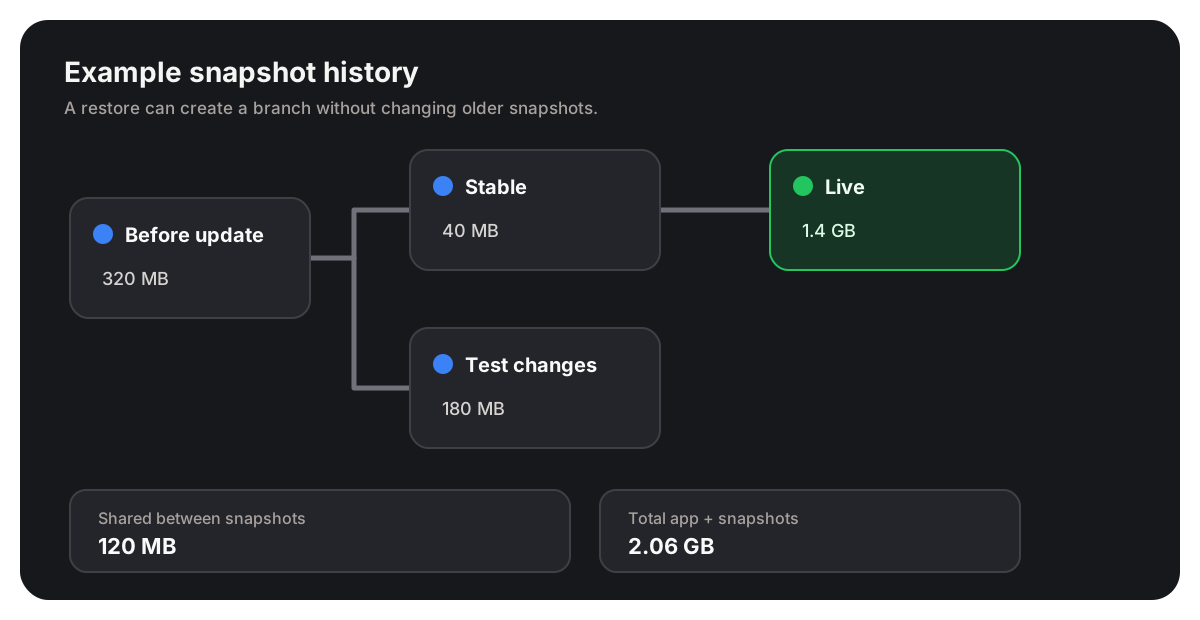
To view the app's history, right-click it and choose Manage Snapshots. The highlighted Live card is the app's current state. Each other card is a saved snapshot.
Going Back to a Snapshot
Restoring an older snapshot makes it the app's current state. Existing snapshots stay where they are, so taking another snapshot afterward can create a second path through the history.
When you restore, Lawn offers two choices:
- Create Snapshot and Restore saves the current state as a new
Pre-Restoresnapshot before restoring. This is the default. - Discard Live State and Restore replaces the current state without preserving it. Lawn asks for a second confirmation because this cannot be undone.
You can also Clone Snapshot into New App. The copy starts stopped and keeps the snapshot's app data, configuration, and port settings. If another running app already uses one of those ports, Lawn will report the conflict when you try to start the copy.
From a snapshot's menu, you can also rename it, delete it, or show its saved data in Finder. Deleting a snapshot does not delete its descendants; Lawn connects them to the deleted snapshot's parent.
Understanding Storage
The storage numbers are arranged so they always add up. Lawn puts each piece of storage in one place:
- Live includes all storage used by the app's current state.
- An individual snapshot includes storage used by that snapshot but not by Live or another snapshot.
- Shared between snapshots includes storage used by two or more snapshots but not by Live.
- Total app + snapshots is Live, every individual snapshot, and shared snapshot storage added together.
Here are a few examples:
| The same data is used by | Lawn counts it under |
|---|---|
| Live, one snapshot, and a file elsewhere on your Mac | Live |
| One snapshot and a file elsewhere on your Mac | That snapshot |
| Two snapshots and a file elsewhere on your Mac | Shared between snapshots |
| Live and two snapshots | Live |
Files elsewhere on your Mac do not change where Lawn puts storage in this view. For example, a file in the Trash does not make a snapshot appear smaller. This also means a snapshot's number is not a promise of how much free space you will get by deleting it.
Lawn recalculates the numbers after a change because taking, restoring, or deleting a snapshot can move storage from one part of the view to another.
Using Snapshots from the Terminal
The same snapshot operations are available through lawn app snapshot. See the snapshot CLI reference for every command and option.